Installation and setup#
This is tutorial for Turbo usage from installing to usage. Download Turbo from: https://gitlab.utu.fi/human-emotion-systems-laboratory/turbo.
Requirements#
Matlab toolboxes#
Database Toolbox
Image Processing Toolbox
Optimization Toolbox
Parallel Computing Toolbox
Signal Processing Toolbox
Statistics and Machine Learning Toolbox
Operating system and hardware#
Turbo was tested with MATLAB R2024b under Ubuntu Linux (version 22.04.5 LTS with MATLAB toolbox versions 24.2). The pipeline may work with other operating systems, but currently we have not tested Turbo on other systems. Used hardware had Intel(R) Xeon(R) Platinum 8468V (97.5M Cache, 2.40 GHz, 900 Gb RAM) with NVIDIA L40 GPU (46 GB VRAM) but will likely work with less powerful setup.
GPU is recommended for faster segmentation.
The required RAM should slightly exceed the size of the PET image to avoid memory issues during processing. For a dynamic dataset with dimensions 440 × 440 × 354 and 24 frames, this corresponds to approximately 20 GB of RAM. In the worst-case scenario, the entire image is loaded into memory at once. However, in practice, this is mitigated by applying a threshold mask to the PET image and processing only the relevant region, which typically reduces memory usage to about one quarter of the original size. The required RAM scales linearly with the number of frames. For example, a dynamic PET dataset with 200 frames may require up to ~200 GB of RAM.
Setting up enviroment variables#
Now that Turbo is installed, some enviroment variables need to be set. First, set enviroment variable for Turbo and greedy. Then set paths to dicom and nifti ‘database’ folders.
setenv('TURBO_DIR', '/your/path/to/turbo')
setenv('GREEDY_DIR', '/your/path/to/greedy/')

setenv('TOTAL_BODY_DICOM_DIR', '/your/dicom/files/folder/')
setenv('TOTAL_BODY_PET_DATA_DIR', '/your/nifti/files/folder/')
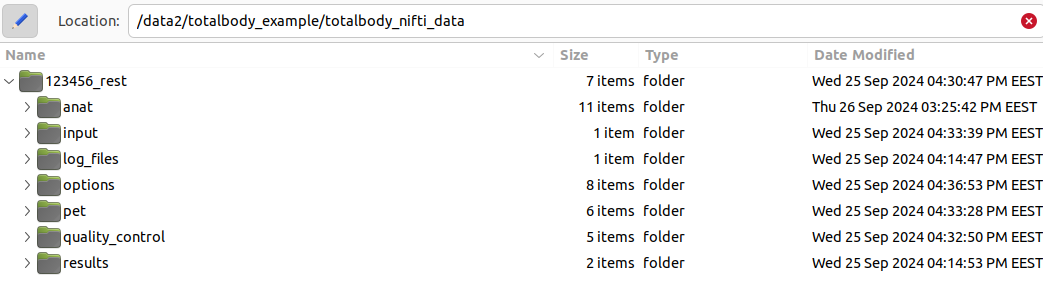
Here '/your/nifti/files/folder/' is a directory that contains each subject in their own folder. Here is an example when enviroment variables have been set to setenv('TOTAL_BODY_DICOM_DIR', '/data2/totalbody_example/totalbody_dicom_data/') and setenv('TOTAL_BODY_PET_DATA_DIR', '/data2/totalbody_example/totalbody_nifti_data/'). There is also one subject with AC-number 123456_rest.

Here is a closer look to the dicom folder. It contains two folders, PET and CT. Both of these should contain only the dicom files for PET and CT images, respectively. If dicom files are present, Turbo automatically converts the dicom image to nifti (PET and CT) and fetches the necessary metadata simultaneously.

Results saved to '/your/nifti/files/folder/' will look something like this.